 IMPLICATOR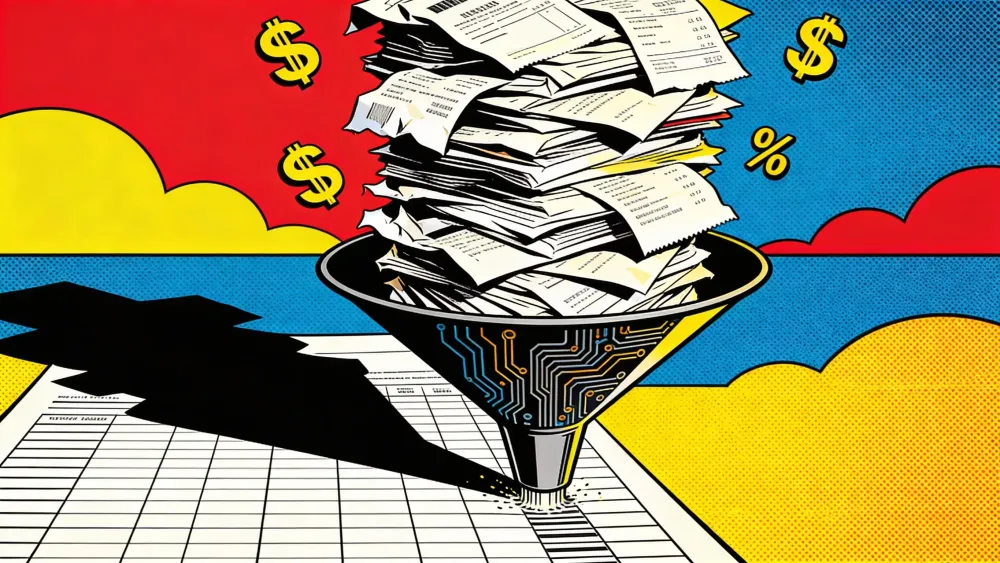
Implicator PRO Briefing / 10 Mar 2026
Same ritual every year. Cardboard box on the kitchen table, lid half off, stuffed with crumpled gas station receipts and a W-2 that nobody bothered to open. Three brokerage statements from three different firms, because of course you didn't consolidate those accounts when you said you would. Medical bills rubber-banded together. And the laptop open beside it all, TurboTax loaded, cursor blinking in an empty field, waiting.
You already know who types the numbers in.
Here's what nobody talks about with tax season: the software isn't the hard part. TurboTax works. FreeTaxUSA works. Even the IRS free file thing works, if you qualify. What eats 6 to 15 hours every spring is everything that happens before the software. Sorting. Reading faded receipts. Squinting at PDFs. Re-keying dollar amounts from one screen into another, praying you don't transpose a digit. The IRS puts the national number at 7.1 billion hours spent on compliance each year, roughly 13 hours and $290 per person. And the ugly truth is that most of those hours go toward moving paper around, not toward understanding the tax code.
This is a tutorial for building a pipeline that kills the paper-shuffling part. When you're done, three things will be running together: Paperless-ngx, an open-source system that scans, OCRs, and indexes every receipt you own; an AI layer that auto-tags each document the moment it arrives; and Anthropic's Claude wired in through the Model Context Protocol, yanking data out of your archive and dropping it straight into a Google Sheets spreadsheet. The kind of spreadsheet you can email to your accountant without embarrassment.
Monthly cost runs $10 to $20 self-hosted, maybe $25 to $35 if you pay someone to host it for you. AI fees for the whole year? Between $6 and $30 for most households. The pipeline doesn't sleep in April and wake up in January. It runs all year.
You don't need to be a developer. Not even close. A machine that runs Docker, some patience with config files, one free weekend. That's the list. I built mine on a Mac mini. Linux works identically. Windows mostly cooperates, though you'll wrestle with a few path differences.
Key Takeaways
- A three-layer open-source pipeline (Paperless-ngx + Paperless-AI + Claude via MCP) automates receipt sorting, document tagging, and spreadsheet data entry for under $25 per year in AI costs
- Self-hosting on a Mac mini M4 draws 5-10 watts and costs roughly $0.80 per month in electricity, making year-round document archiving cheaper than a single streaming subscription
- Claude Haiku processes 1,000 tax documents for under $3 in API fees, handling classification, field extraction, and structured spreadsheet output through the Model Context Protocol
- The pipeline replaces 6-15 hours of annual manual data entry but keeps humans in control of tax code interpretation, filing decisions, and final verification of extracted amounts
What you'll need before you start
Hardware. Anything that can stay on. A Mac mini M4 ($549, idles at 5-10 watts) is the sweet spot. Budget mini PCs with Intel N97 or Ryzen chips work fine at $200-350. Or skip the hardware entirely: a VPS from Hostinger ($8.99/month) or Sliplane (~€9/month) runs Paperless just as well.
Software. Docker Desktop or OrbStack (Mac users: OrbStack, seriously, don't skip this). Git. Any text editor. Claude Desktop, which is free.
Accounts. Anthropic API access, or just a Claude Pro subscription at ~$20/month. Google account for the spreadsheet side. Both free to set up.
Comfort level. Can you open a terminal? Paste a command? Edit JSON without panicking? Then you're fine. If you've run docker compose up even once, the hard part is already behind you.
Set up Paperless-ngx in an afternoon
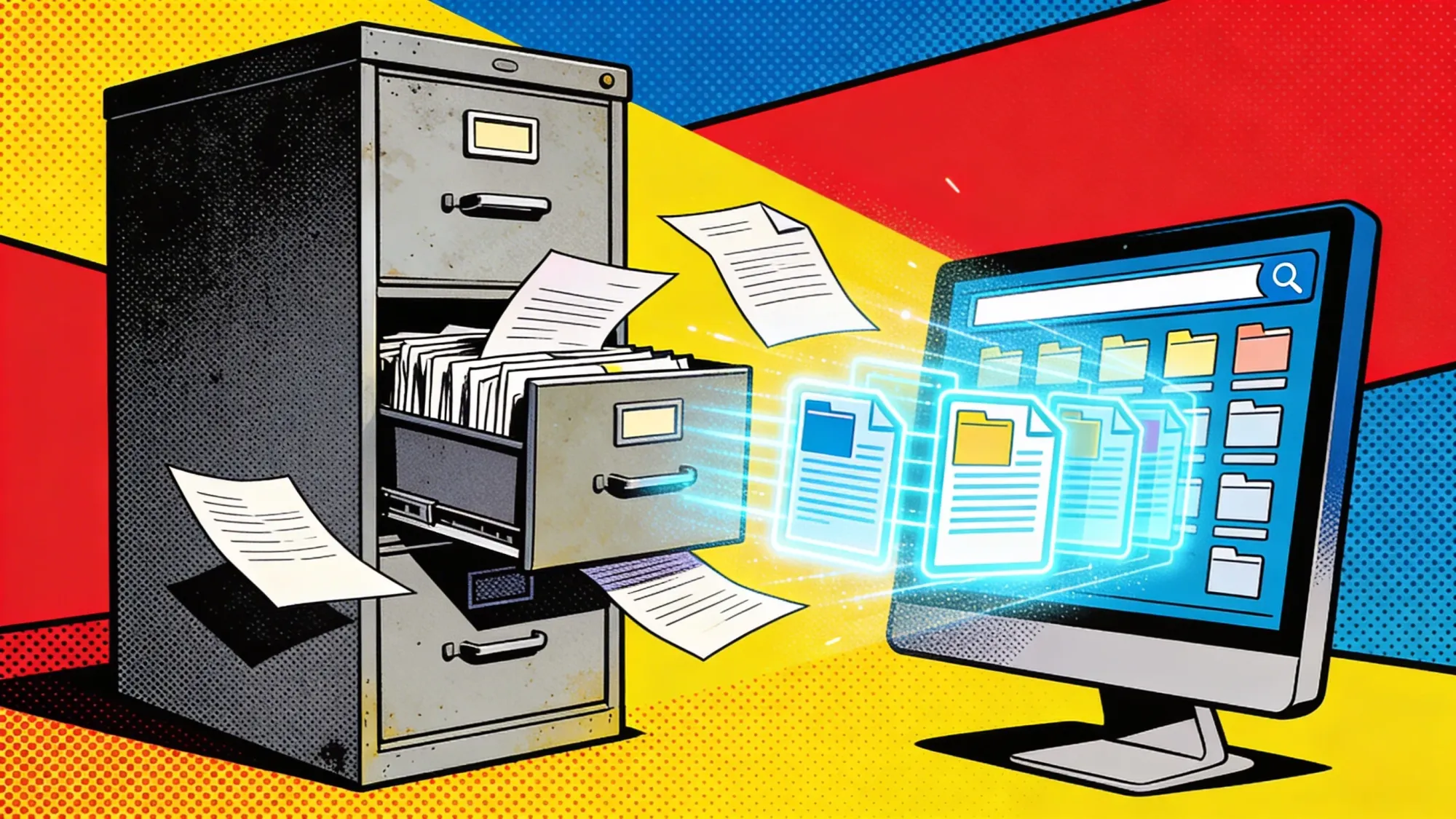
Paperless-ngx sits at the bottom of this whole stack. Throw whatever you've got at it. That wrinkled gas receipt from February. The phone photo of a whiteboard. PDF attachments from your bank you never opened. Paperless doesn't care about format. Everything gets OCR'd and indexed. The archive gives you tags, custom fields, document types, and a search bar that actually finds things. Like having your own private Google for the filing cabinet, except it lives on hardware you control.
Grab the project directory and the official Docker Compose file:
mkdir -p ~/paperless-ngx && cd ~/paperless-ngx
curl -O https://raw.githubusercontent.com/paperless-ngx/paperless-ngx/main/docker/compose/docker-compose.postgres.yml
mv docker-compose.postgres.yml docker-compose.yml
Crack open docker-compose.yml. You'll find four containers. PostgreSQL handles the database. Redis brokers messages. The Paperless web server does the heavy lifting. Gotenberg converts Office documents into PDFs. Most defaults work out of the box, but tweak these environment variables under webserver:
environment:
  PAPERLESS_TIME_ZONE: America/Los_Angeles
  PAPERLESS_OCR_LANGUAGE: eng
  PAPERLESS_CONSUMER_POLLING: 30
  PAPERLESS_FILENAME_FORMAT: "{created_year}/{correspondent}/{title}"
  PAPERLESS_URL: http://localhost:8000
That polling value? Paperless checks for new files every 30 seconds. And get the filename format right the first time. Year-based folders, sorted by sender and title. Seems like overkill now. Wait until you're SSH'd into the server at 10pm hunting for one specific receipt. Future you will be grateful.
Fire it up:
docker compose up -d
docker compose exec webserver python3 manage.py createsuperuser
Hit http://localhost:8000 in your browser. Dashboard should load, completely empty. Good.
Build your tax taxonomy
Before you drop a single receipt in here, get the metadata right. This step is boring. It also determines whether everything downstream actually works.
Tags. Head to Settings > Tags and create:
tax(catch-all for anything tax-adjacent)business-expensemedicalincomereceipt1099w2
Custom fields. Settings > Custom Fields:
Tax Year(integer)Amount(monetary)Vendor(text)
Correspondents. Add your bank, employer, insurance companies, whoever sends you things. Paperless watches how you correct its guesses and gradually learns to assign correspondents on its own.
Why does this matter so much? Because when Claude connects through MCP later, it filters by tag and reads custom fields to build spreadsheet rows. Sloppy taxonomy here means sloppy data downstream. Every prompt you write later has to compensate for whatever shortcuts you take now.
Feed documents into the pipeline
Paperless monitors a consumption directory. Make sure this volume mount is in your docker-compose.yml:
volumes:
  - ./consume:/usr/src/paperless/consume
Three ways to feed it.
Drag and drop. Toss any PDF or image into ~/paperless-ngx/consume/. Paperless grabs it within 30 seconds, runs OCR, files it.
Phone scanner. SwiftScan, Adobe Scan, whatever you already have on your phone. Point the output at your consume folder over SMB or SFTP. Snap a receipt over lunch. Back at your desk, it's already indexed.
Email rules. This is where things start clicking. In Settings > Mail, hook up an IMAP account and build rules:
| Rule name | Sender contains | Action |
|---|---|---|
| Bank statements | @chase.com |
Import attachment, tag income |
| Medical bills | @blueshield.com |
Import attachment, tag medical |
| Freelance invoices | invoice in subject |
Import attachment, tag business-expense |
Give it a few weeks. Documents start appearing without you doing anything. OCR runs automatically. Paperless's built-in ML watches your corrections and starts guessing correspondents and tags on its own. Then one morning it hits you. Three months since you last dragged a PDF into a folder. Nobody told you to stop. The machine just quietly took over.
~/paperless-ngx/consume/ without being picked up, check that Docker has Full Disk Access in System Settings > Privacy & Security, or use OrbStack, which handles macOS permissions more cleanly.
Add an AI brain with Paperless-AI
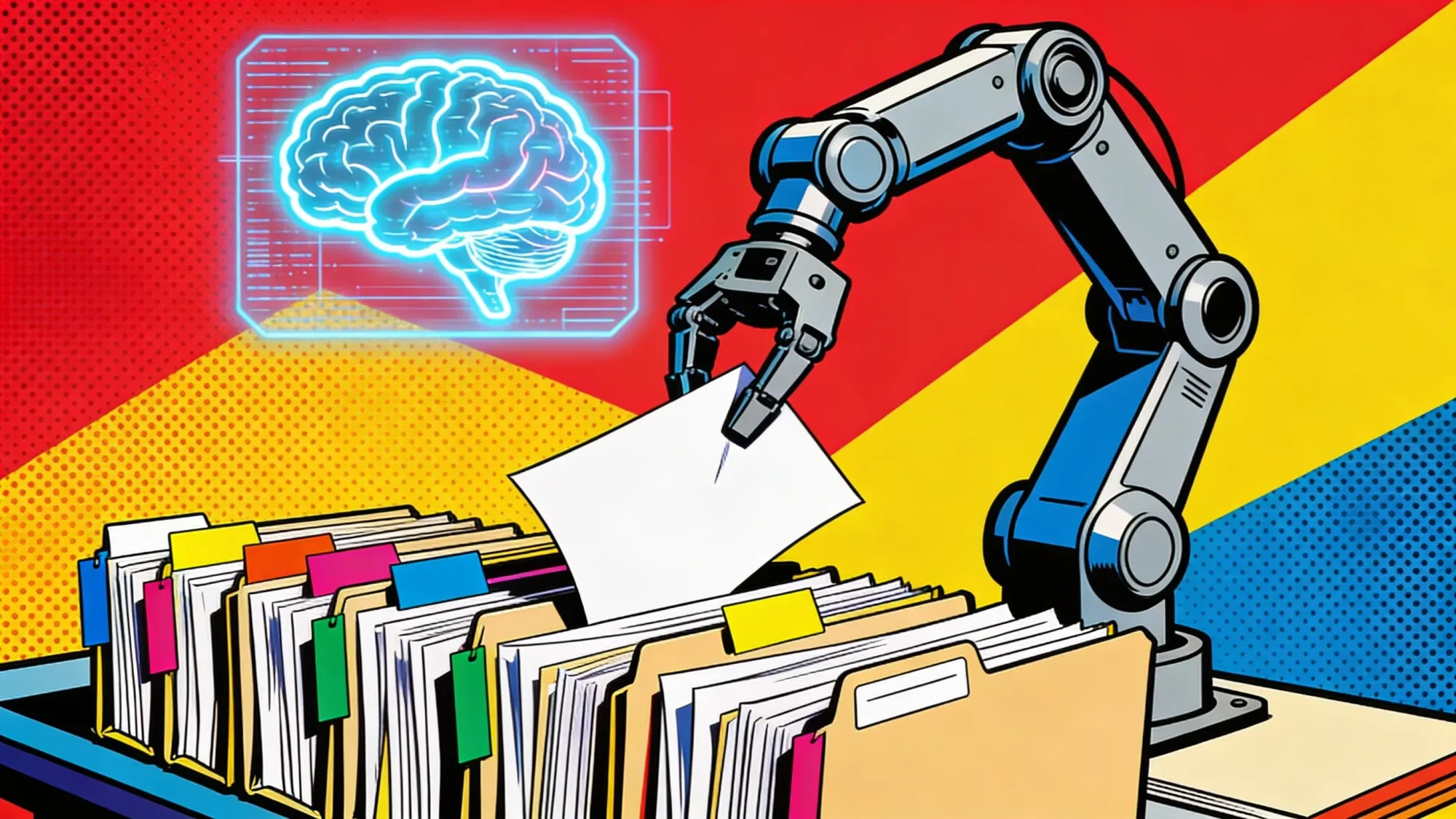
Paperless-ngx's own ML does passable sorting. But it chokes on the stuff that actually matters for taxes: it can't distinguish a 1099-INT from an ordinary bank letter, and it has no idea that a $47 Home Depot receipt belongs in your business expense pile because you bought a shelf for your home office. Real classification needs a real language model.
Paperless-AI fills that gap. Another Docker container, sits alongside Paperless, watches for incoming documents. When one lands, it ships the OCR text to Claude, GPT-4o, or a local model through Ollama for classification.
Drop this into your existing docker-compose.yml:
  paperless-ai:
    image: clusterzx/paperless-ai:latest
    container_name: paperless-ai
    environment:
      PAPERLESS_API_URL: http://webserver:8000/api
      PAPERLESS_API_TOKEN: your-paperless-token
      AI_PROVIDER: anthropic
      ANTHROPIC_API_KEY: your-anthropic-key
      AI_MODEL: claude-haiku-4-5-20251001
      SCAN_INTERVAL: 60
    depends_on:
      - webserver
    restart: unless-stopped
Where do you get PAPERLESS_API_TOKEN? Your Paperless profile page, Settings > API Tokens. Generate one. Paste it in. Then docker compose up -d.
Haiku keeps costs nearly invisible. One receipt might burn 500 input tokens. A dense 1099 form, closer to 1,500. Output runs 100 to 300 tokens per document. Anthropic charges $1 per million input tokens, $5 per million output. Run the math on a thousand documents over twelve months and you land under $3. I double-checked. Three bucks.
How the tagging loop works
New document hits Paperless. The companion container sees it and starts a tight loop:
- Grabs the new file ID from the Paperless API
- Pulls the OCR text
- Ships the text off to Claude Haiku with a classification prompt
- Writes back a title, tags, document type, correspondent
Gas station receipt? Becomes:
- Title: Shell Gas Station Receipt $47.82
- Tags:
business-expense,receipt,tax - Correspondent: Shell
- Custom field Tax Year: 2025
1099-INT from your bank? Becomes:
- Title: Chase Bank 1099-INT 2025
- Tags:
income,1099,tax - Correspondent: Chase Bank
- Custom field Amount: $342.18
No dragging, no filing, no renaming PDFs at 11pm. Spot-check the AI's work for the first few weeks, correct any misses, and Paperless stores those corrections. Tune the Paperless-AI prompts if a particular document type keeps getting mislabeled. After about 50 documents, corrections dry up.
When nothing leaves your network
Some people go white at the thought of sending their W-2 to any cloud API. Reasonable. Swap Claude for a local model through Ollama:
environment:
  AI_PROVIDER: ollama
  OLLAMA_API_URL: http://host.docker.internal:11434
  AI_MODEL: llama3.2
Local models are slower. They misclassify more often. Simple receipts and invoices still get tagged correctly about 85% of the time, but dense tax forms with tiny grids of numbers give local models real trouble. Trade-off worth making if the alternative is your Social Security number traveling through someone else's infrastructure.

Wire Claude to your archive with MCP
Model Context Protocol gives Claude direct hooks into your Paperless archive. Read documents, pull numbers, push results into a spreadsheet. One conversation. No glue scripts.
MCP runs on small programs called "servers" that expose specific tools to Claude. You need two of them: one wired to Paperless-ngx, one wired to Google Sheets.
Install the Paperless MCP server
Community-built paperless-mcp package. Install is one line:
npm install -g paperless-mcp
Or just use npx without installing globally. Claude Desktop handles either approach. Have your Paperless URL and API token handy.
Add a Google Sheets MCP server
Several options floating around. A clean Node-based one:
npm install -g @anthropic-ai/mcp-server-google-sheets
This one needs a Google Cloud service account credential file. About 10 minutes of clicking: console.cloud.google.com, enable Sheets and Drive APIs, create service account, download the JSON key. Then share your target spreadsheet with the service account's email, something like tax-pipeline@your-project.iam.gserviceaccount.com. Add it through the Share dialog, same as you'd share with a human.
Don't want to touch the Google Cloud console? Zapier and Skyvia both offer managed MCP endpoints that let you wire Claude to Sheets through a browser UI. Less hassle. The catch: your spreadsheet data takes a detour through their infrastructure. After everything you just did to keep your W-2 off the public internet, maybe think twice about that.
Configure Claude Desktop
Find Claude Desktop's config file.
Mac: ~/Library/Application Support/Claude/claude_desktop_config.json
Windows: %APPDATA%\Claude\claude_desktop_config.json
Wire in both servers:
{
  "mcpServers": {
    "paperless": {
      "command": "npx",
      "args": ["paperless-mcp"],
      "env": {
        "PAPERLESS_URL": "http://localhost:8000",
        "PAPERLESS_TOKEN": "your-paperless-api-token"
      }
    },
    "google-sheets": {
      "command": "npx",
      "args": ["@anthropic-ai/mcp-server-google-sheets"],
      "env": {
        "GOOGLE_CREDENTIALS_PATH": "/Users/you/.config/sheets-creds.json"
      }
    }
  }
}
Restart Claude Desktop. A small hammer icon appears in the text input area. Click it and you should see tools from both servers in the list. If something's missing, check the MCP log for clues: ~/Library/Logs/Claude/mcp*.log.
Six tools, one conversation window
What Claude can actually do now:
| Tool | Server | What it does |
|---|---|---|
list_documents |
Paperless | Lists documents, filterable by tag, date, or custom field |
get_document |
Paperless | Returns full OCR text and all metadata for one document |
search_documents |
Paperless | Full-text search across the entire archive |
create_spreadsheet |
Sheets | Creates a new Google Sheet |
append_rows |
Sheets | Adds rows to an existing sheet |
read_range |
Sheets | Reads a specific cell range |
Nothing fires until you say so. And every single tool call shows up in the chat window. You see what Claude reads, you see what it writes. No black box.
When the wiring breaks
Three failure modes hit most people during setup.
Node too old. MCP servers need Node.js 18+. Syntax errors from npx or servers that crash silently usually mean you're running Node 16 or earlier. node --version in your terminal tells you. brew install node on Mac fixes it. On Linux, grab it from NodeSource instead of apt, which ships ancient versions.
Wrong API token. You generated a token in Paperless, pasted it into claude_desktop_config.json, and now every tool call returns a 401. Probably pasted the wrong string, or you regenerated the token since. Claude's error message won't tell you much. Check the MCP logs, then go back to Paperless and verify the token matches.
Sheets permission gap. Your service account has its own email address. If you forgot to share the spreadsheet with that address, Claude can create brand-new sheets (owned by the service account) but can't touch your existing ones. Open the spreadsheet, Share, paste the service account email, Editor access. Done.
All three take five minutes or less once you know where the problem lives.
Run the extraction
Here's the part that makes the whole thing worth building. Open Claude Desktop. Type a prompt.
Example 1: List and summarize all tax documents
Prompt:
List all my documents tagged "tax" with Tax Year 2025. Show me the title, correspondent, and amount for each one.
What happens next: Claude calls list_documents, filters on the tax tag and Tax Year = 2025, then spits out a formatted list:
Found 47 documents tagged "tax" for 2025:

 1. Chase Bank 1099-INT 2025          Chase Bank        $342.18
 2. Fidelity 1099-DIV 2025            Fidelity          $1,247.33
 3. Shell Gas Station Receipt $47.82   Shell             $47.82
 4. Home Depot Receipt $234.99         Home Depot        $234.99
 5. Blue Shield Medical Bill $180.00   Blue Shield       $180.00
 ...
Not exactly groundbreaking. Just a list. Think about how you did this last year. On your feet in front of a filing cabinet. Pulling folders. Squinting at labels printed so small you needed reading glasses. That chewed up an afternoon. This? Four seconds flat.
Example 2: Extract business expenses to a spreadsheet
Prompt:
Go through all my 2025 documents tagged "business-expense" in Paperless. For each one, extract the date, vendor name, category, total amount, and the Paperless document ID. Create a new Google Sheet called "2025 Business Expenses" and add all the data as rows. If you cannot find a clear total amount, write REVIEW in the amount column.
Claude breaks it apart on its own:
- Calls
list_documentsfiltered tobusiness-expensetag, Tax Year 2025 - Loops through each result with
get_document, reads the full OCR text - Pulls out the fields you asked for
- Fires
create_spreadsheetto make the sheet - Loads everything in with
append_rows
What lands in the sheet:
| Date | Vendor | Category | Amount | Doc ID |
|---|---|---|---|---|
| 2025-01-14 | Shell | Fuel | $47.82 | 142 |
| 2025-01-22 | Home Depot | Office supplies | $234.99 | 156 |
| 2025-02-03 | Delta Airlines | Travel | $412.00 | 171 |
| 2025-02-15 | WeWork | Coworking | $350.00 | 189 |
| 2025-03-08 | Staples | Office supplies | $89.44 | 203 |
| 2025-04-12 | Uber | Transport | REVIEW | 221 |
See that REVIEW on the Uber receipt? Claude found the document, read the OCR text, and decided it couldn't trust what it saw. Maybe OCR ate a digit. Maybe the receipt had three charges and no clear bottom line. You fix that one cell yourself. Everything else? Straight through.
Example 3: Build a full tax prep summary
Prompt:
I need to prepare my 2025 taxes. Search my Paperless archive for all documents tagged "tax" from 2025. Group them into these categories: W-2 income, 1099 income, business expenses, medical expenses, and charitable donations. For each category, extract every line item with date, source, description, and amount. Calculate subtotals per category. Put everything in a Google Sheet called "2025 Tax Prep" with one tab per category and a summary tab showing the totals.
Big operation. Claude works through each document one at a time, parses the OCR, sorts it into categories, builds five tabs plus a summary. Takes two or three minutes on a large archive. Summary tab:
| Category | Documents | Total |
|---|---|---|
| W-2 Income | 1 | $95,400.00 |
| 1099 Income | 4 | $3,847.51 |
| Business Expenses | 23 | $8,234.77 |
| Medical Expenses | 12 | $2,441.00 |
| Charitable Donations | 6 | $1,850.00 |
Print that summary tab. Hand it to your accountant. Or open TurboTax yourself, punch in the numbers, click back to source documents in Paperless whenever something smells off. Either way, the re-keying marathon is over.
When the extraction goes sideways
Not every document plays nice. Three patterns you'll hit over and over.
Garbled OCR comes first. A crumpled thermal receipt from a parking garage produces text like "Tot l: $2 .00" instead of "Total: $24.00." Claude does what it can with damaged text, but missing digits are missing digits. These rows should carry a REVIEW flag. If Claude keeps filling in numbers on badly scanned documents without flagging them, add this to your prompt: "If OCR text looks garbled, damaged, or has missing digits, flag the row as REVIEW."
Then there's misclassification. An insurance reimbursement check looks like income to Claude. It's actually a refund on a medical expense you already paid. Paperless-AI's tags help here: if something carries both medical and income, that contradiction signals a document worth eyeballing. Add this to your prompt: "If a document has tags suggesting conflicting categories, note the conflict in a Comments column."
Multi-line-item documents are the third headache. One pharmacy receipt, four prescriptions, four different copays. Claude defaults to extracting a single total unless you tell it otherwise. The fix is one sentence in your prompt: "For receipts with multiple items, create one row per item, not one row per receipt." Makes the spreadsheet longer. Also makes it actually useful.
Prompting tips that improve accuracy
A few things I learned by getting it wrong first.
Specificity saves you hours. "Extract the total" is mushy. "Extract the final total after tax, in USD, as a decimal number without currency symbols" gets you clean data. The specificity pays for itself when you're processing 200 documents and don't want to hand-fix formatting on every row.
Receipts are full of junk: return policies, loyalty points, store addresses, footer text about the manager on duty. Tell Claude to skip it. "Ignore non-financial text like return policies, store addresses, and loyalty details" keeps the model aimed at the numbers.
Handle ambiguity up front. That REVIEW flag from Example 2? It comes from one sentence in the prompt: "If you cannot find a clear total amount, write REVIEW in the amount column instead of guessing." Without that line, Claude fills in its best guess. And a best guess on a tax document, honestly, is worse than a blank cell.
Don't feed Claude your entire archive in one shot. That's how you get garbage. Twenty to thirty documents per prompt works best. Keep the context window tight. When the model juggles 200 receipts at once, mistakes compound in weird ways and you spend more time fixing than you saved. Four hundred documents? Fifteen batches. A minute each.
Here's a trick I wish I'd known earlier: add a Confidence column. "Write HIGH if the amount was clearly printed, LOW if the OCR text looked garbled or incomplete." Now you can sort by confidence and only manually check the LOW rows, instead of scanning every entry looking for problems.
What it actually costs
People assume this is expensive. They're wrong.
Hosting Paperless-ngx:
| Option | Monthly cost |
|---|---|
| Self-hosted Mac mini M4 (electricity only) | ~$0.80 |
| Self-hosted mini PC (Intel N97) | ~$1.50 |
| Sliplane managed instance | ~$10 |
| Hostinger VPS (2 vCPU, 8GB RAM) | $8.99 |
| Paperless-Home Essential plan | ~$5.50 |
AI costs (annual estimate for a typical household):
| Model | Input / 1M tokens | Output / 1M tokens | Est. annual tax cost |
|---|---|---|---|
| Claude Haiku 4.5 | $1.00 | $5.00 | $3-8 |
| Claude Sonnet 4.6 | $3.00 | $15.00 | $10-25 |
| Claude Opus 4.6 | $5.00 | $25.00 | $20-50 |
Here's what those numbers look like for an actual person. Graphic designer in Portland. Four regular clients. Home studio. Side gig selling prints online.
Over 2025 she scans 320 receipts. Eight 1099 forms trickle in from various platforms. A W-2 from her part-time teaching gig. Forty-five medical receipts from a year of physical therapy. That's 374 documents total.
Paperless-AI tags them as they arrive. A typical receipt chews through 800 input tokens and spits out 200 in response. Multiply that by 374 documents. By December she's used about 300k input tokens. Maybe 75k output. Haiku prices that at sixty-eight cents for the whole year. I ran the number twice because I didn't believe it.
Tax season rolls around. Three extraction prompts, 100 to 150 documents per batch. That tacks on roughly 600k more input tokens. Another 150k output. Grand total for twelve months of tagging plus extraction: about 900k input, 225k output. Haiku bill: $2.03. Sonnet runs $6.08. Opus, the expensive tier, tops out at $10.13.
The burrito she ate while setting it up cost more than a year of Sonnet.
Numbers that matter here:
- TurboTax Self-Employed: $129/year plus $59 per state
- CPA for a moderately complex return: $400-800
- This pipeline, self-hosted on Haiku: $10-25/year total
But get clear on what you're actually replacing here. Not TurboTax. Not your CPA. You're killing the hours of manual data entry that happen before you touch either one. Your accountant still reads the tax code. The software still files the return. Only difference: the paperwork lands clean instead of crumpled in a shoebox.
Keep your tax data locked down
Tax documents are loaded with Social Security numbers, income figures, account details, routing numbers. If you're building this pipeline, you should feel nervous about where that data flows. Good. That nervousness is doing its job.
This setup keeps more data under your control than uploading PDFs to some web chatbot. Paperless archive sits on your hardware. MCP servers talk to it over localhost. Claude only sees OCR text from specific documents you invoke through tool calls, not the whole archive in one gulp.
Anthropic's API terms say customer prompts aren't used for model training by default. But read the fine print, because "by default" always has asterisks. The important distinction: data through the API (which is what MCP uses) gets treated differently from data typed into the free chat. API data has a 30-day retention window for safety review, then it's deleted. Free-tier chat data may feed into training unless you opt out. Running this pipeline through Claude Desktop with API keys puts you on the API track.
Run local models on the documents that carry your identity. Ollama for W-2s and 1099s with SSNs. Claude for receipts and invoices where the worst case is someone learning you spend too much at Staples. That split costs you some tagging accuracy on the sensitive stuff, but it keeps the data that could enable identity theft locked to your own hardware.
And scope your MCP servers. Hard. Cautious users get this instinctively. The Paperless MCP server should only return documents with your tax tag, not every utility bill and personal letter scanned since 2019. The Sheets MCP server should write to exactly one spreadsheet, not your entire Google Drive. Least privilege isn't just a corporate buzzword here. It's the thing standing between your financial data and a misconfigured config file.
Test with fake data before going live. Make five receipts with made-up numbers. Run the full extraction. Does the spreadsheet match? Good. Now switch to real documents. Twenty minutes of testing saves you from finding out the pipeline is misconfigured after your real W-2 has already traveled through three API calls.
Lock down network access too. Paperless stays behind your router's firewall. Port 8000 never faces the public internet. Need it remotely? VPN or SSH tunnel. A document management system stuffed with tax records shouldn't be one port scan from exposure.
Where the pipeline still needs you
This system eats the boring middle of tax prep. Edges remain.
OCR still botches numbers on crumpled thermal receipts. A faded "3" from a gas station register becomes an "8" in Paperless. Paperless-GPT helps, running documents through a vision model for better OCR. But it means another container, more API spend. Spot-check amounts against source PDFs before you file anything.
Always.
Claude isn't a tax advisor, and the distinction matters. Tell it to extract numbers from a 1099-B and it delivers. Ask it whether your home office qualifies for the simplified deduction or the regular method, and you're asking a question where a wrong answer costs real money. The AI stays on the data-entry side of the line. Tax code interpretation stays on the human side. Or your CPA's side.
Certain documents just won't cooperate. Handwritten notes from a client. A photographed whiteboard from a contractor meeting. A receipt ripped in half, total missing entirely. The pipeline flags these with REVIEW if your prompts are set up correctly. But resolving them? Still your job.
Accountants, for their part, tend to get defensive about these setups. Some of them worry clients are handing tax decisions to a chatbot and hoping for the best. The spreadsheet you deliver should put that worry to rest. Every row traces back to a scanned original in Paperless. Every dollar amount can be verified against the source PDF. The accountant's workload doesn't shrink. The accountant's intake just arrives organized, verified, and three weeks earlier than usual. If anything, that frees them up for the judgment calls that actually need a CPA license, instead of spending billable hours deciphering your handwriting on a Post-it note.
What to watch
- Anthropic: Whether Claude Desktop ships built-in document management tools or a first-party Paperless integration by late 2026
- Paperless-ngx: Version 3.x roadmap mentions native LLM hooks, which would kill the need for Paperless-AI as a separate container entirely
- IRS Direct File: The agency's free filing tool covered 25 million taxpayers across 25 states in 2025 and keeps growing. If it reaches your tax situation, the last step of this pipeline gets simpler. Watch for 2026 coverage announcements in January
- Google and Microsoft: Both building AI into Sheets and Excel, which could absorb the spreadsheet MCP layer entirely. Google already lets Gemini manipulate Sheets from a side panel. If either ships native MCP support, the third-party server becomes dead weight
- Token pricing: Haiku-class costs dropped roughly 80% over the past 18 months, and further cuts would push the AI cost of this pipeline toward zero. We're close to that already
Key Takeaways
- Tagging is the real investment: The quality of your tax extraction depends more on a clean Paperless taxonomy (tags, custom fields, correspondents) than on which AI model you choose.
- Haiku handles 90% of it: Most document classification and data extraction does not require expensive frontier models. Claude Haiku at $1/$5 per million tokens keeps annual costs under $10 for typical households.
- Year-round beats April panic: The pipeline's biggest advantage is not speed but continuity. Documents flow in and get classified all year, turning tax prep from a weekend scramble into a 30-minute review.
- Local protects identity, not accuracy: Running Ollama keeps sensitive data offline but drops tagging accuracy on complex tax forms. Use local for W-2s and 1099s containing SSNs, cloud for receipts and invoices.
- MCP is the multiplier: Without the Model Context Protocol, this pipeline requires custom scripts between each layer. MCP turns it into a conversation where one prompt replaces dozens of copy-paste operations.
- The CPA still gets the last word: This pipeline replaces data entry, not tax judgment. Every dollar of extraction cost should be measured against hours saved, not against accountant fees avoided.
- REVIEW flags prevent expensive errors: Explicitly telling Claude to flag uncertain extractions instead of guessing is the single most important prompting decision in any tax workflow.
Sources & Further Reading
- Primary Sources
- Paperless-ngx documentation — Official usage guide, configuration reference, and API docs
- Paperless-ngx GitHub repository — Source code, Docker Compose files, and community discussions
- Paperless-AI GitHub repository — AI classification companion for Paperless-ngx
- Paperless-GPT GitHub repository — LLM-enhanced OCR and metadata extraction for Paperless-ngx
- Tools & Platforms
- Model Context Protocol specification — Official MCP standard documentation
- Anthropic MCP documentation — Claude Desktop setup and MCP server development guides
- Anthropic API pricing — Current token pricing for Claude Haiku, Sonnet, and Opus models
- Ollama — Run open-weight language models locally for private document processing
- Docker — Container platform for running Paperless-ngx and companion services
- OrbStack — Lightweight Docker alternative for macOS with better performance and permissions handling
- Hosting
- Sliplane — Managed Paperless-ngx hosting starting at ~€9/month
- Hostinger — VPS hosting with guided Paperless-ngx deployment from $8.99/month
Free AI briefing · Weekdays
The AI stories that matter, sourced and explained.
Join the Morning Briefing. It goes out every weekday at 4:45 a.m. Pacific, with later sends for the East Coast, Berlin and Tokyo.
Free when you sign up: The Paperclip Compendium, our tested guide to running AI agents.
Free. Unsubscribe in one click.

Marcus Schuler
Editor-in-Chief and founder of Implicator.ai. Former ARD correspondent and senior broadcast journalist with 10+ years covering tech. Writes daily briefings on policy and market developments. Based in San Francisco. E-mail: editor@implicator.ai