 IMPLICATOR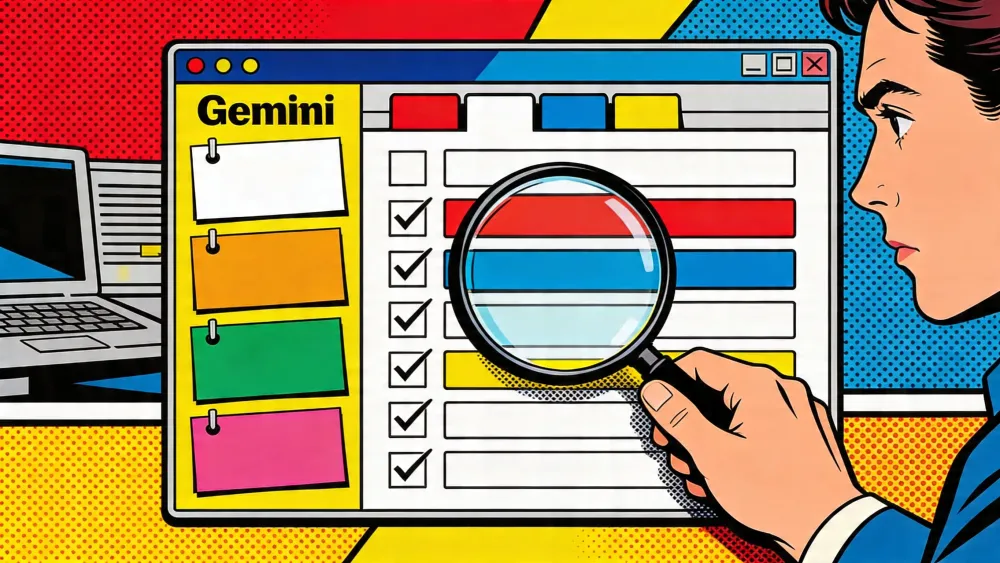
Chrome Skills are saved Gemini prompts that run inside Chrome against the page you are viewing and any extra tabs you select. If you already ask Gemini in Chrome to summarize pages, compare products, rewrite notes, or pull risks from a document, Skills let you turn that repeated instruction into a shortcut instead of typing it again. Google announced Skills in Chrome on April 14, 2026. The basic user path is simple: open Gemini in Chrome, type / or use the + control, choose a saved Skill, and let Gemini process the page or selected tabs.
This tutorial assumes you already use desktop Chrome and have access to Gemini in Chrome. The catch: Google describes Skills as rolling out through Gemini in Chrome, so availability may still vary by account, device, language settings, and profile. If your sidebar looks bare, your account may simply be waiting in the rollout queue. You will build three reusable Skills. One briefs a page. One compares selected tabs. One turns research pages into a source-checking worklist. You will also learn how to name Skills, scope tabs, test output quality, and decide when not to use them.
What You'll Learn
- Set up Gemini in Chrome and confirm Skills access before saving prompts.
- Turn repeated page and tab prompts into reusable Skills with failure rules.
- Build safer comparison and research Skills that show missing evidence.
- Name, test, and prune your Skills library before it becomes noise.
AI-generated summary, reviewed by an editor. More on our AI guidelines.
Set Up Gemini In Chrome Before You Save A Skill
Start with the access path, because a Skill is not a separate Chrome extension or a script you install. It lives inside Gemini in Chrome. Open Chrome on desktop and check the Google profile badge first. Then look near the upper-right corner for the Ask Gemini sparkle icon. Open the sidebar and ask something tiny about the page in front of you: Summarize this page in three bullets is enough. If Gemini answers from the page, the plumbing works.
Google says saved Skills are available on signed-in Chrome desktop devices. That makes naming and account choice matter. If you keep one Google profile for work and another for personal browsing, create work Skills in the work profile. Do not save a research Skill in a personal profile and then wonder why it is missing on your office machine.
Once the sidebar works, test the launcher. Type / in the Gemini prompt box. If Skills are available for your account, Chrome should show saved Skills and a way to reach the library. Google also describes a + control for selecting saved Skills. No menu? Check the boring items first: Chrome version, browser language, and whether Gemini in Chrome is enabled. If those look right, do not chase random flags from forum threads. The rollout may just not have reached your account.
Here is the setup plan you should follow before building any serious Skill:
- Open a public article in Chrome.
- Open the Gemini sidebar with the
Ask Geminiicon. - Ask one one-off question about the page.
- Type
/in the prompt box and confirm whether Skills appear. - Check which Google profile is signed into Chrome.
That last step sounds dull until you have to rebuild a set of Skills in the wrong profile. Treat the browser profile as part of the setup, not as decoration.
Chrome Skills setup check

- Chrome is open on desktop.
- The correct Google profile is signed in.
- Chrome language is set to English (US).
- Gemini in Chrome is enabled for this profile.
- The Ask Gemini sidebar opens from the browser toolbar.
- Gemini can answer a question about the current page.
- Typing / in the Gemini prompt box shows Skills or the Skill library.
- The + control appears if your account has that UI.
- No private tabs are selected for the first test.
Turn Repeated Prompts Into Skill Candidates
The best Skills begin as prompts you have already used more than once. Do not save every clever prompt. Save the ones tied to repeated browser work: reading a dense article, comparing three product pages, checking job listings, extracting claims from a report, or rewriting a draft in a format you use every week. The right mental model is saved instruction, not a new model capability. A Skill speeds up a known instruction. It does not make Gemini more deterministic.
Before you save a prompt, write it as if another person will use it next month. Include the input, the task, the output shape, and the failure rule. The input is the current page or selected tabs. The task is what Gemini should do with that context. The output shape tells it whether you want bullets, a table, a checklist, or a draft. The failure rule tells it what to do when the page does not contain enough information.
For example, a weak Skill says, Summarize this page. That is fast, but it is vague. A better Skill says, Read the current page and return five decision points, three risks, and any dates or numbers I should verify. If the page does not contain dates or numbers, say so instead of inventing them. The second version is longer, but it saves editing every time you run it.
For an intermediate workflow, build a small Skill backlog before saving anything:
- List five prompts you have typed at least three times in the past month.
- Delete any prompt tied to a private account, client file, or sensitive dashboard.
- Rewrite each remaining prompt with a clear output format.
- Add a failure rule to each prompt.
- Save only the top three.
This keeps the library usable. A Skill menu with eight trusted commands is better than a drawer full of half-tested prompts with names like Research thing and Summarize better.
Skill name:
Extract page brief and verification notes

Prompt:
Read the current page only.

Return:
1. Five decision points from the page.
2. Three risks, caveats, or missing details.
3. Every date, number, product name, or policy claim I should verify.
4. A short "do not use this for" note if the page lacks enough evidence.

Rules:
- Use only the current page.
- Do not fill gaps from memory.
- If a field is missing, write "not stated on this page."
- Keep the output under 250 words unless the page contains many claims.
Build A Multi-Tab Comparison Skill
The most useful Chrome Skills are not single-page summaries. They are small browser workflows that use selected tabs. Google’s launch examples include shopping comparisons across multiple tabs, and the same pattern works for software plans, vendor pages, job listings, online courses, travel options, or competing documentation pages.
Open three pages that belong to the same decision. For a product comparison, that might be three laptop product pages. For work research, it might be three vendor pricing pages. The key is scope. Select only the tabs you want Gemini to consider. Do not leave your inbox, internal dashboard, bank page, or unrelated research tab in the context. Tab selection is a practical security boundary even when the final task is harmless.
Now write the Skill as a comparison rule instead of a one-off request. Tell Gemini what dimensions to compare and how to handle missing data. A good comparison Skill does not only rank winners. It records gaps. If one page omits return policy, battery life, model limits, or pricing details, the output should mark that field as missing rather than filling it from memory.
Use this example plan:
- Open three comparable public pages.
- Run a one-off comparison prompt first.
- Check whether Gemini cites facts from the visible pages.
- Add fields that were missing from the output.
- Save the revised prompt as a Skill only after it works twice.
The second test matters. A Skill that works once can still fail when the page layout changes. Run it against a different set of similar tabs before saving. If the second output gets messy, narrow the task. Ask for five fields instead of twelve. Ask for a table plus a short recommendation instead of a long essay. Short, typed output is easier to review.
Skill name:
Compare selected product tabs

Prompt:
Compare only the tabs I selected.

Create a table with these columns:
- Product or service name
- Price or plan shown on the page
- Main feature that matters for this decision
- Limit, warranty, return policy, or plan cap
- Missing information
- Best fit, if the page supports one

After the table, write:
1. The strongest option for a cautious buyer.
2. The option with the clearest missing information.
3. Three facts I should verify before buying.

Rules:
- Do not use unselected tabs.
- Do not rank a winner if the pages omit key fields.
- Mark missing fields as "not stated."
Browser AI is becoming daily work. Track what changes.
Strategic AI news from San Francisco. No hype, no "AI will change everything" throat clearing. Just what moved, who won, and why it matters. Daily at 6am PST.
No spam. Unsubscribe anytime.
Create A Research Skill That Surfaces Verification Work
Chrome Skills are tempting for research because they can summarize, compare, and condense page context quickly. The trap is that a polished answer can hide weak sourcing. Your research Skill should expose verification work instead of pretending to finish it.
For editorial, product, or analyst work, design the Skill around claims. Ask Gemini to extract dates, numbers, product names, feature claims, and unsupported assumptions from the current page. Then ask it to separate what the page directly states from what the author infers. This is especially useful with launch-day product material, where summaries can blur Google’s own product claims with outside interpretation.
You can also use this Skill across two or three selected tabs. For example, put Google’s announcement beside a support page and a product help page. Then make Gemini do the tedious sorting: which facts show up everywhere, which details appear only once, and which claims still need official confirmation. That turns the Skill into a reporting assistant instead of a summary machine.
Keep the output boring. A table with claim, source page, support level, and what to verify next is better than a neat paragraph. Boring output catches errors. It also survives the trip into a document, spreadsheet, or CMS without turning into paste soup.
Use this research routine:
- Put the primary source in the first selected tab.
- Add one or two secondary sources only if they discuss the same feature.
- Ask for claims and verification tasks, not a finished conclusion.
- Reject any output that cites facts without pointing to a selected page.
- Save the Skill after you have tuned the output fields.
This approach also reduces overconfidence. Google says Skills use the same safeguards as Gemini in Chrome and require confirmation before certain sensitive actions, such as adding calendar events or sending email. That confirmation does not mean every summary is correct. Your Skill should remind you what still needs checking.
Skill name:
Extract claims and verification tasks

Prompt:
Use the current page and any selected tabs about the same topic.

Build a table with these columns:
- Claim
- Page where the claim appears
- Direct quote or close paraphrase from the page
- Support level: primary, repeated by another source, single-source, or unclear
- What I need to verify next

Then add:
1. Facts that appear in every selected source.
2. Details that appear in only one source.
3. Claims that sound like interpretation rather than fact.
4. Any dates, numbers, product names, or availability limits.

Rules:
- Do not merge unrelated tabs.
- Do not infer a fact from a headline alone.
- Say "not enough evidence" when the selected pages do not support a claim.
Name, Test, And Prune Your Skills Library
After you build the first few Skills, library hygiene becomes the real work. Name each Skill by its output, not by the page where you first used it. Extract claims and verification tasks is a useful name. Chrome article thing is not. Compare selected product tabs is useful. Shopping is too vague.
Use a short naming pattern:
- Start with the action:
Extract,Compare,Rewrite,Summarize,Draft. - Add the input:
selected tabs,current page,job listing,pricing pages. - Add the output:
table,brief,risk list,email draft.
Then test each Skill against a page where you already know the answer. If the Skill misses obvious facts, produces unsupported claims, or gives you prose when you asked for a table, edit it immediately. Do not keep a broken Skill around because you plan to fix it later. Saved prompts behave like bookmarks: once the list grows, weak entries stay there for months.
You should also decide which tasks do not belong in Skills. Avoid workflows that process passwords, regulated client data, financial accounts, private HR data, medical records, confidential source material, or anything that would cause trouble if the wrong tab were selected. You can still use Gemini in Chrome manually for low-risk browsing, but saving a Skill lowers friction. Lower friction is good for routine tasks and bad for tasks that need a pause.
For teams, keep expectations modest. The public launch materials describe personal saved prompts, editing, selected-tab context, and a premade library. They do not establish team libraries, approval flows, prompt versioning, audit logs, or formal compliance controls. Until Google documents those controls, treat Skills as individual productivity tools rather than managed workflow automation.
Skills library rules

Good names:
- Extract claims from current page
- Compare selected pricing tabs
- Rewrite draft as short email
- Find risks in job listing
- Summarize page into action list

Bad names:
- Research
- Shopping
- Chrome thing
- Better summary
- Useful prompt

Prune a Skill when:
- It fails twice on pages where it should work.
- It needs heavy editing after every run.
- It touches data you would not paste into a chatbot manually.
- You cannot tell from the name when to use it.
Common Mistakes And Pitfalls
Saving A Prompt Before It Has Worked Twice
The first mistake is saving a prompt after one good answer. That fails because the prompt may depend on a page layout, a lucky model response, or context you forgot was open. Test it against a second comparable page before saving. If the second output is worse, tighten the fields, reduce the task, or add a failure rule.
Selecting Too Many Tabs
The second mistake is treating selected tabs as harmless. Gemini can use the tabs you share, so the output can mix unrelated context or process information you did not intend to include. Select only tabs that belong to the same task. Close or unselect logged-in services, internal tools, private docs, and unrelated research pages before running a Skill.
Asking For A Final Answer When You Need A Worklist
The third mistake is asking a Skill to decide for you. If the task involves research, procurement, hiring, health, finance, legal work, or security, the Skill should produce a worklist, evidence table, or draft for review. It should not produce the final decision. Add fields like what is missing, what needs verification, and do not infer.
Using Vague Skill Names
The fourth mistake is naming saved prompts after a topic instead of a job. Recipe tells you almost nothing a month later. Convert recipe to high-protein substitutions tells you exactly when to use it. Rename weak entries as soon as you notice them.
Treating Skills As Automation
The fifth mistake is assuming a saved prompt is the same thing as an automation rule. It is not. It still runs through a generative model, and outputs can vary. Review results before sending email, adding calendar events, buying products, changing plans, or copying claims into published work.
Summary And Next Steps
You can now treat Chrome Skills as prompt macros with browser context: useful for repeated reading, comparison, extraction, rewriting, and drafting, but still dependent on Gemini’s current behavior and the tabs you choose. Start with three low-risk Skills: a page brief, a selected-tab comparison, and a research verification table. Test each one twice, name it by output, and prune anything that does not save real time. As Google expands Gemini in Chrome, watch for better controls around sharing, policy, and audit trails. Until then, keep Skills personal, bounded, and reviewable.
Frequently Asked Questions
What are Chrome Skills?
Chrome Skills are saved Gemini in Chrome prompts. You can run them from the Gemini sidebar against the current page and selected tabs instead of typing the same instruction again.
Do Chrome Skills require a paid AI plan?
Google describes Skills as rolling out through Gemini in Chrome. Availability may vary by account, device, language settings, and profile during rollout.
Can a Skill read multiple tabs?
Yes, public launch sources describe Skills running on the current page and other tabs you select. Treat selected tabs as a boundary and avoid mixing private or unrelated pages.
Are Chrome Skills safe for confidential work?
Use caution. Google says Skills use Gemini in Chrome safeguards and ask for confirmation before certain sensitive actions, but public sources do not establish team audit logs or compliance controls.
What is a good first Skill to create?
Start with a low-risk page brief. Ask Gemini to extract decision points, risks, dates, numbers, and missing evidence from the current page only.
AI-generated summary, reviewed by an editor. More on our AI guidelines.



Free AI briefing · Weekdays
The AI stories that matter, sourced and explained.
Join the Morning Briefing. It goes out every weekday at 4:45 a.m. Pacific, with later sends for the East Coast, Berlin and Tokyo.
Free when you sign up: The Paperclip Compendium, our tested guide to running AI agents.
Free. Unsubscribe in one click.

Marcus Schuler
Editor-in-Chief and founder of Implicator.ai. Former ARD correspondent and senior broadcast journalist with 10+ years covering tech. Writes daily briefings on policy and market developments. Based in San Francisco. E-mail: editor@implicator.ai