 IMPLICATOR
You have a coding agent open in one terminal, a development server in another, and test output buried behind both. Reopening the windows restores their positions only if you remember where everything belonged. Herdr, a terminal workspace manager, lets you group those processes by project and reconnect to them after closing the terminal client.
You will build a three-pane workspace, control it from a shell, and give an agent a bounded review task. The examples follow the official documentation checked on September 6, 2026. These Bash examples assume Linux or macOS, Python 3, curl, and jq, a command-line tool for extracting values from JSON (JavaScript Object Notation). Herdr also ships Windows binaries. The optional agent section assumes Claude Code, Anthropic’s terminal coding agent, is already installed and authenticated. Use an ordinary development account.
The exercise serves a disposable local folder and prints a heartbeat. You can verify the terminal behavior before attaching it to an application you care about. Start with the installation guide; the session-state reference explains the persistence limits you will test below.
What You'll Learn
- Build a three-pane development workspace and capture its pane IDs for reliable commands.
- Run a local server, inspect output, and verify that it responds.
- Give a coding agent a bounded task and interpret its status correctly.
- Distinguish reconnecting to live processes from restoring sessions after a restart.
AI-generated summary, reviewed by an editor. More on our AI guidelines.
Establish the session boundary
Herdr normally runs a background server that owns the terminal processes. The interface you see is a client of that server. Closing the client leaves the server running, which keeps the panes and their programs alive while the host remains awake and operational.
If you already use Homebrew, install Herdr and jq with the command below. On other systems, use the platform instructions linked above and your package manager for jq. Confirm that python3 and bash are available before continuing. Keep updates with the installer you chose: a Homebrew installation is updated through Homebrew.
brew install herdr jq
herdr --version
jq --version
python3 --version
bash --version
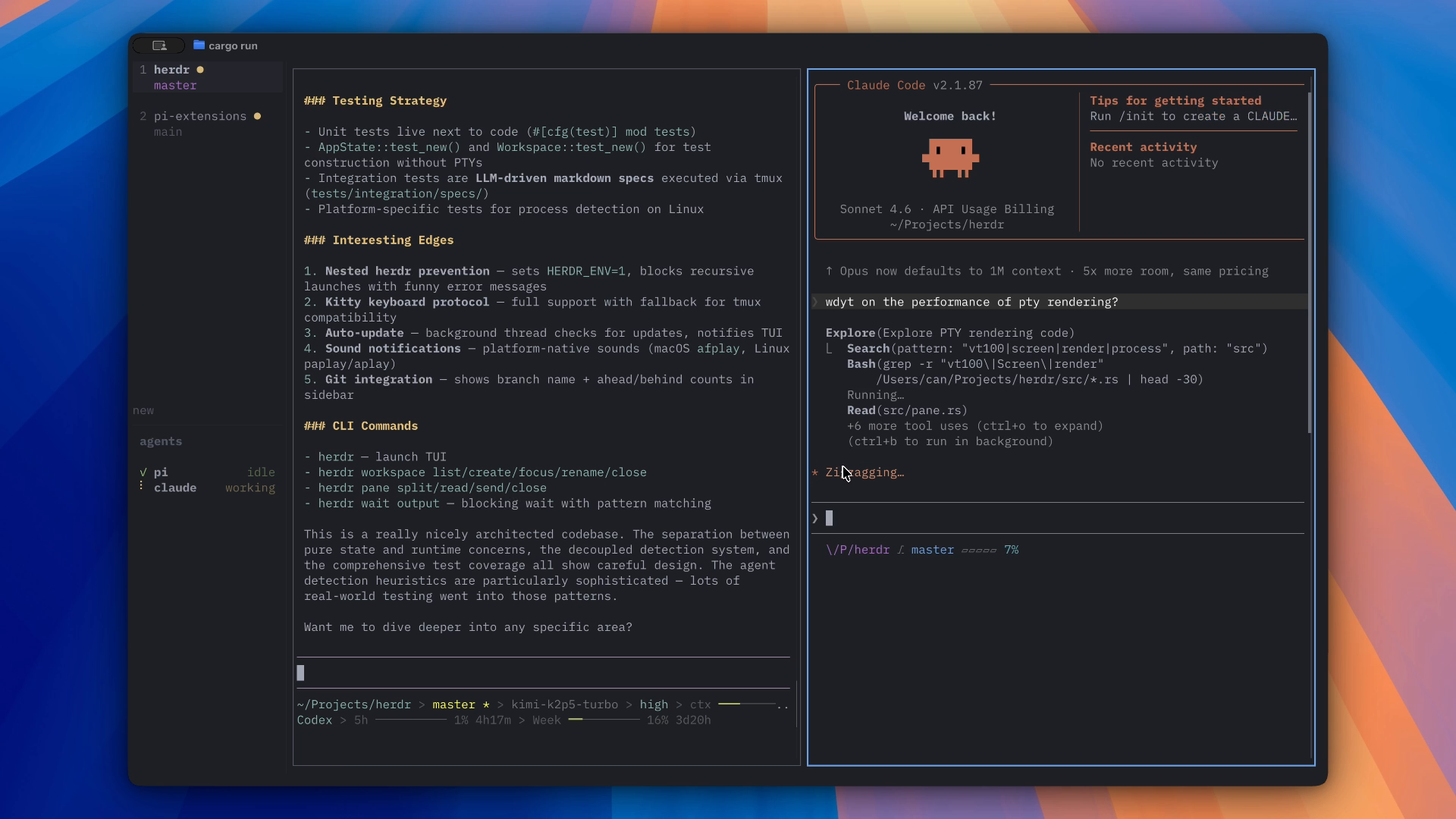
Open two ordinary terminal windows. In the first, run herdr. Leave it attached so you can see what the commands in the second window create. Use the default session throughout this exercise. A second default Herdr client attaches to the same runtime; it does not provide an isolated experiment.
herdr
In the second terminal, enter the Bash control shell shown at the start of the next example and keep it open for the command blocks that follow. Your pane IDs will live in its variables. Separating the control shell from the displayed workspace makes it easier to see what each operation changes.
Start small if you already have a busy default session. The exercise creates a labeled workspace and leaves its ID in a variable so you can close precisely that workspace afterward. Do not use a server-wide stop command as routine cleanup.
Create a workspace with explicit targets
A workspace groups a project’s tabs and panes. A tab contains a terminal layout, and each pane runs a terminal process. Creating a workspace already creates its first tab and root pane. You will use that root pane for a small local web server, then split it for a heartbeat and a review shell.
Create a temporary directory with mktemp. Its generated path avoids overwriting an existing project. Add one plain-text file so the server has something recognizable to return. The commands below are an author-created exercise; the Herdr operations follow its documented command-line interface (CLI).
bash
HERDR_DEMO_DIR=$(mktemp -d "${TMPDIR:-/tmp}/herdr-demo.XXXXXX")
printf 'hello from herdr\n' > "$HERDR_DEMO_DIR/hello.txt"
created=$(herdr workspace create --cwd "$HERDR_DEMO_DIR" \
  --label herdr-tutorial --no-focus)
workspace_id=$(printf '%s\n' "$created" | jq -er '.result.workspace.workspace_id')
server_pane=$(printf '%s\n' "$created" | jq -er '.result.root_pane.pane_id')
printf 'Workspace: %s\nServer pane: %s\n' "$workspace_id" "$server_pane"
The automation reference documents the response fields. Extract .result.workspace.workspace_id for the workspace and .result.root_pane.pane_id for its first pane. The -e option makes jq return an error for a missing or null value. If any command fails, stop this sequence and inspect its error before continuing.
Do not copy a pane identifier from a screenshot or an older tutorial. Those identifiers describe another running session. Saving the response also gives you something to inspect when your installed version behaves differently from the documentation.
Split the root pane to the right, then split that new pane downward. Pass the same working directory explicitly to both operations. Name the panes for their jobs so the displayed layout remains readable after you stop thinking about the shell variables.
split=$(herdr pane split "$server_pane" --direction right \
  --cwd "$HERDR_DEMO_DIR" --no-focus)
heartbeat_pane=$(printf '%s\n' "$split" | jq -er '.result.pane.pane_id')
split=$(herdr pane split "$heartbeat_pane" --direction down \
  --cwd "$HERDR_DEMO_DIR" --no-focus)
review_pane=$(printf '%s\n' "$split" | jq -er '.result.pane.pane_id')
herdr pane rename "$server_pane" server
herdr pane rename "$heartbeat_pane" heartbeat
herdr pane rename "$review_pane" review
herdr workspace focus "$workspace_id"
You should see a server pane on the left and two smaller panes on the right. If you prefer different proportions, drag the divider. The layout is a convenience; the captured IDs are what keep later commands pointed at the intended terminals.
Run processes and inspect their output
Start Python’s simple HTTP server in the root pane, bound to the loopback address 127.0.0.1. HTTP means Hypertext Transfer Protocol, the protocol your browser uses for the request. The server exposes only the disposable directory to clients on that machine. It is a development example, not a production hosting configuration.
In the heartbeat pane, print the time every two seconds. Both commands occupy their panes until you interrupt them. Leave the third pane at a shell prompt for the agent section.
herdr pane run "$server_pane" 'python3 -u -m http.server 8765 --bind 127.0.0.1'
herdr pane run "$heartbeat_pane" 'while true; do date; sleep 2; done'
pane run submits text followed by Enter to the terminal. Use it only when the target pane is at a shell prompt and ready for that command. A pane running an editor or an interactive agent would receive the text in that application instead.
Wait for the server’s startup message, request hello.txt, then read the heartbeat output. Each check answers a different question. The startup message tells you the server reached its listening step. The request proves it returned the expected file. The changing times show the other process continues independently.
herdr pane wait-output "$server_pane" --match 'Serving HTTP' --timeout 15000
curl --fail --silent --show-error http://127.0.0.1:8765/hello.txt
herdr pane read "$heartbeat_pane" --source visible
The request should return hello from herdr. If port 8765 is already occupied, Python prints an address-in-use error. Choose another unused port and change both the server command and request to match. Do not terminate an unrelated process merely to free the example port.
Output matching has a limit: Herdr searches the selected terminal snapshot, including text already present. A previous startup line can satisfy a later wait even if the current server failed. For repeated runs, inspect fresh output and make a new request. A matching line alone does not establish that your application is healthy.
FREE WEEKDAY MORNING BRIEFING
Make your coding tools easier to use
The Implicator Morning Briefing filters the AI news cycle to the stories worth your attention and explains their consequences. From San Francisco, every weekday at 4:45 a.m. Pacific, 7:45 a.m. Eastern.
About five minutes. No hype. No spam.
Add an agent with a bounded job
Use the review pane for an agent after confirming that its shell is idle. The first two panes remain ordinary processes; they need no agent integration. This separation lets you keep application output visible while the agent reasons about a specific task.
The example uses Claude Code. Install Herdr’s Claude integration and check its status before starting a new agent. The integration supplies native conversation identity for session restore. Restore requires a current integration and a reported session reference; the checked documentation lists version 6 as the minimum Claude integration version. Claude’s visible working and blocked states still use screen-based classification; installing the integration does not turn those indicators into a complete account of the agent’s activity.
herdr integration install claude
herdr integration status
herdr agent start tutorial-reviewer --kind claude --pane "$review_pane"
Complete any first-launch login or trust prompt in the pane yourself. If agent start returns agent_not_ready, read the pane and resolve the prompt before submitting work. Do not automatically send Enter through an unfamiliar approval dialog.
Ask the agent to inspect the small file and suggest one improvement to the exercise without editing anything. This makes the initial task cheap to assess: you already know the file’s contents, and the expected result is a recommendation you can accept or reject.
herdr agent prompt tutorial-reviewer \
  'Read hello.txt in this directory and suggest one improvement to this local server exercise. Do not edit files or run commands that change files.' \
  --wait --timeout 120000
herdr agent read tutorial-reviewer --source visible
A wait can finish because the agent became idle, completed unseen work, or reached a recognized question. Read the returned state and the pane’s answer before deciding what happened. A timeout reports that your waiting command stopped waiting; inspect the agent rather than immediately sending the same task again.
Herdr’s agent documentation explains why a new prompt shape can appear as idle when the screen rules do not recognize it. Use the sidebar to decide where to look. Verify completion through the answer, changed files, and relevant tests.
For your own project, begin with a read-only review of a named file or diff. Give the agent a precise deliverable and identify which files it may edit when you move to implementation. Separate panes do not isolate files. Two agents launched in the same checkout can still overwrite each other’s changes.
Test reconnecting before relying on it
In the first terminal, press Ctrl+B, release the keys, then press q without Shift. That detaches the Herdr client. Leave the host awake. From the control shell, request the file again and read the heartbeat pane, then reopen the interface.
curl --fail --silent --show-error http://127.0.0.1:8765/hello.txt
herdr pane read "$heartbeat_pane" --source visible
herdr
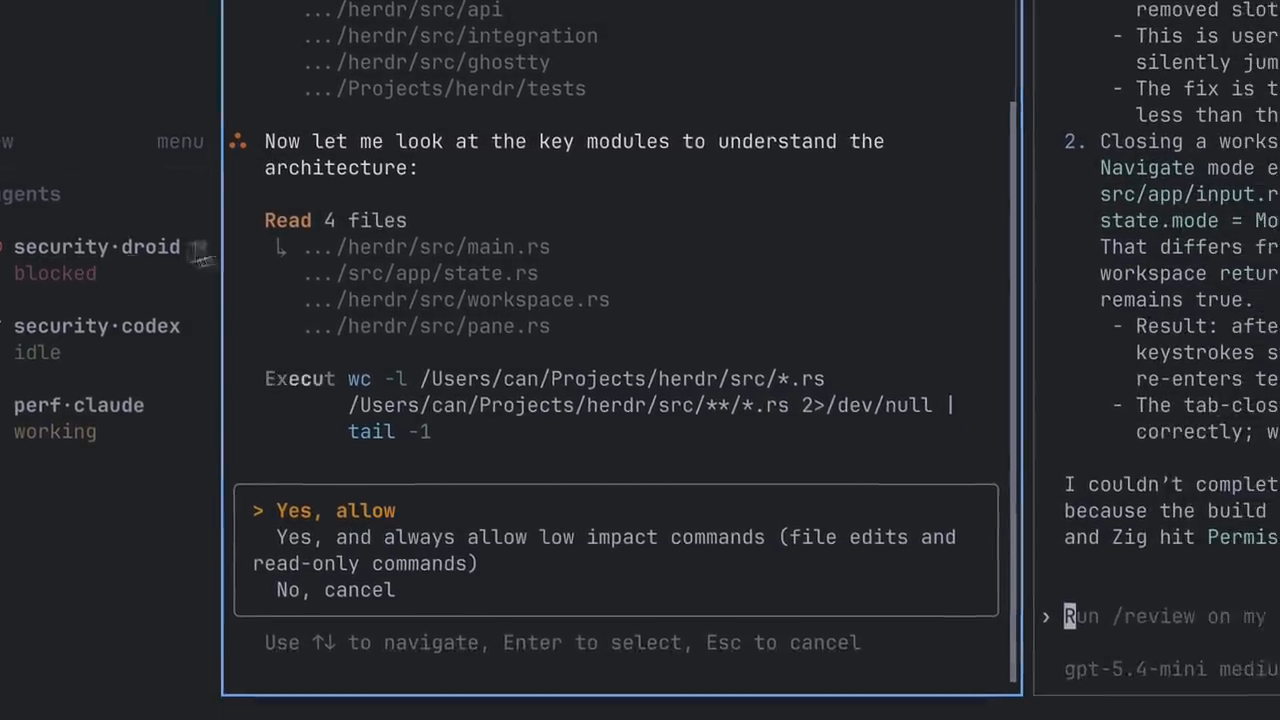
You should see later timestamps and the same workspace. This is the behavior the clipping demonstrates when its presenter closes and reopens a terminal. You are reconnecting to processes that stayed alive.
A sleeping host pauses local execution. A reboot destroys the original processes. Herdr can restore the saved workspace layout after a server restart, and supported agents can resume conversations through valid integration-reported session references. An HTTP server or heartbeat loop does not thereby resume its old process.
For work that must continue while your laptop sleeps, place the repository, dependencies, agent credentials, and Herdr runtime on a separate awake Linux or macOS host. Windows is not supported as a remote host for this path. Check ordinary Secure Shell (SSH) access first. In the following example, workbox is your own configured SSH host alias, not a service supplied by Herdr. The first command runs true remotely and returns without opening an interactive login shell.
ssh workbox true
herdr --remote workbox
The remote-access guide describes installation and version matching. Review any remote installation or restart prompt. Once attached, commands run on that remote machine. Its loopback address belongs to it, so the earlier local browser request will not automatically reach a remote server. Establish this working-directory and host boundary before handing the agent a task.
Fix the mistakes that waste time
Commands land in the wrong pane. Omitting a target can make an operation depend on the currently focused layout. A click then changes the outcome of your script. Capture IDs when creating panes and pass them explicitly. Inspect pane get for a target before sending an unexpected command.
A done badge gets treated as acceptance. The badge reflects agent state and whether you have viewed its tab. It says nothing about the correctness of a patch. Read the response and inspect the result. In this exercise, check that hello.txt is unchanged and that the server still returns its contents.
Detaching gets confused with stopping. herdr server stop ends the default server’s panes. To leave work running, detach with Ctrl+B followed by q. To remove this exercise, close only the workspace captured earlier, after stopping its long-running commands and finishing the agent session.
A wait matches stale output. A repeated phrase in scrollback can make a later wait return immediately. Use a fresh pane or a distinct per-run marker when automating repeated jobs, and verify the actual result. For the example server, the fresh file request supplies that second check.
herdr pane get "${server_pane:?Use the original control shell}"
herdr pane send-keys "$server_pane" ctrl+c
herdr pane send-keys "${heartbeat_pane:?Use the original control shell}" ctrl+c
herdr workspace close "${workspace_id:?Use the original control shell}"
Run cleanup from the same Bash control shell after exiting the agent normally. Check that the workspace variable is still set before closing anything. Keep the disposable folder if you want to inspect it; these cleanup commands close the workspace and leave its files alone.
Take the pattern into your project
You now have a repeatable way to create a workspace, address its panes, inspect output, and return after detaching. Apply it to one repository first: replace the example server with your development command and use the remaining shell for a narrowly scoped review. Keep a concrete result check beside every automated wait.
Your next steps are separate Git worktrees for agents that edit concurrently, native agent session restore for interrupted conversations, and a remote host when local sleep is the problem. Test each separately with disposable work. Before expanding to a screen full of agents, choose one acceptance condition for the next task: which file, test result, or visible behavior will tell you the work is ready?
Frequently Asked Questions
Does Herdr keep working when my laptop sleeps?
Local processes pause while their host sleeps. To continue working, run Herdr and your development tools on a separate awake host, then connect remotely. Closing only the terminal client leaves the background runtime running.
Do I need an AI agent to use Herdr?
No. Its panes can run ordinary shells, development servers, tests, and other terminal programs. The tutorial starts with a local HTTP server and heartbeat before adding an optional coding agent.
Does a done badge mean the agent succeeded?
No. It indicates the agent is idle after unseen background activity. Read the answer, inspect any changes, and run the checks relevant to the task before accepting the result.
Can two panes edit the same repository safely?
Panes share access to the filesystem. They do not isolate edits. Use separate Git worktrees for concurrent editing tasks and review the changes before integrating them.
Will my server restart automatically after a reboot?
Restoring a Herdr layout does not restore an arbitrary running process. Supported agents may resume conversations through valid integration-reported session references, but you should restart ordinary development commands explicitly.
AI-generated summary, reviewed by an editor. More on our AI guidelines.
Related stories
Free AI briefing · Weekdays
The AI stories that matter, sourced and explained.
Join the Morning Briefing. It goes out every weekday at 4:45 a.m. Pacific, with later sends for the East Coast, Berlin and Tokyo.
Free when you sign up: The Paperclip Compendium, our tested guide to running AI agents.
Free. Unsubscribe in one click.

Marcus Schuler
Editor-in-Chief and founder of Implicator.ai. Former ARD correspondent and senior broadcast journalist with 10+ years covering tech. Writes daily briefings on policy and market developments. Based in San Francisco. E-mail: editor@implicator.ai